
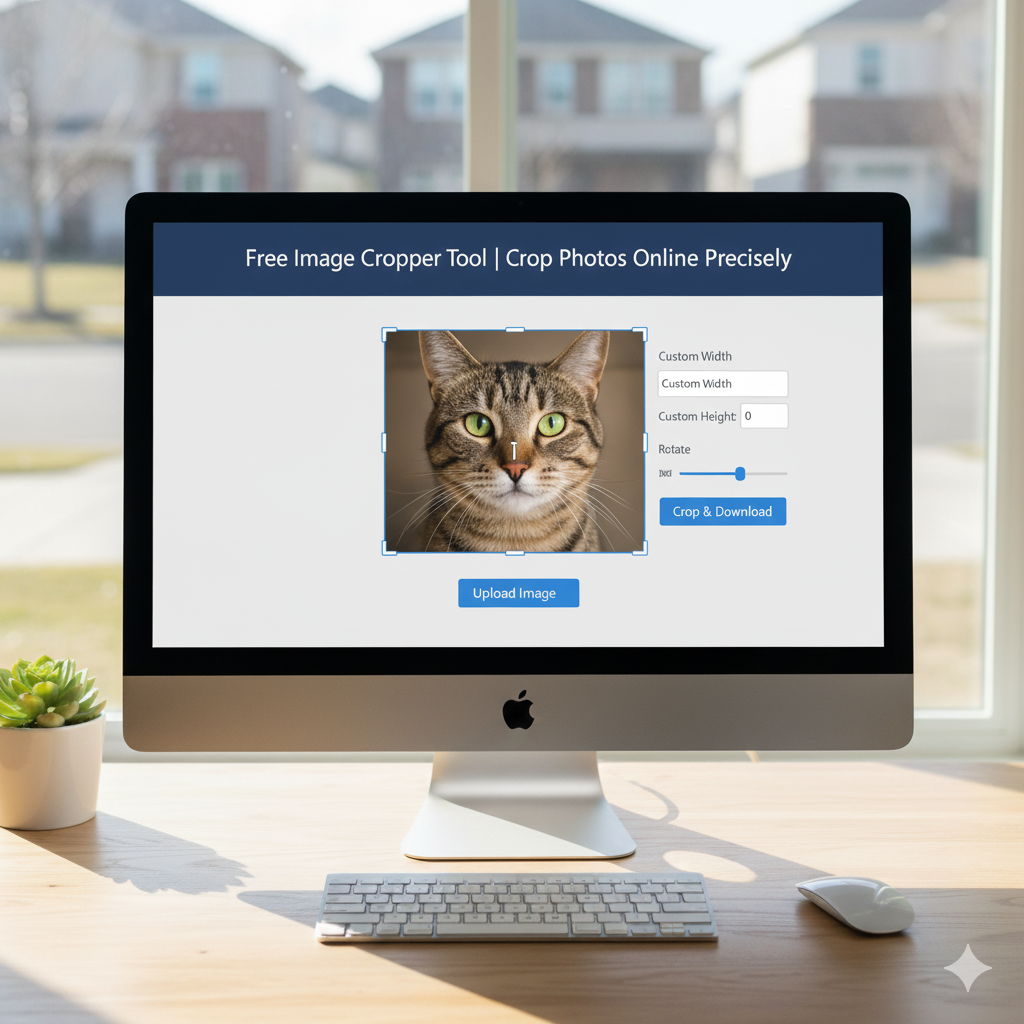
✂️ Image Cropper
Crop your images with precise aspect ratios and custom dimensions
Drop your image here or click to browse
Supports JPG, PNG, GIF, WebP, and other common formats
📋 How to Use:
- Upload an image using the button above or drag & drop
- Select an aspect ratio or choose “Custom” for free cropping
- Click and drag on the image to create a crop selection
- Adjust the selection by dragging the corners or edges
- Click “Crop Image” to apply the crop
- Download your cropped image
🖼️ Crop Area
⚙️ Crop Settings
Selection Info
No selection
Position: 0, 0
Aspect: Free
Original Image
Cropped Image
Intro
Got photos with junky backgrounds or stuff you don’t want? Cropping is the easiest way to fix them up. It lets you trash what you don’t need and zoom in on what matters. It’s a super useful trick to make your pics look better. Our free online tool lets you do just that
What’s an Image Cropper?
It’s a tool that chops off the edges of your picture. You pick the part you want, and it gets rid of the rest. The part you keep still looks good, but without the distractions. You can change how wide or tall it is, focus on the details, or just make it look better. It’s a basic way to make your photos look pro.
Why Bother Cropping?
Cropping can take a so-so photo and make it awesome by cleaning up the image. It helps cut out the stuff that takes away from what you’re trying to show. Cropping lets you move the focus and make people look where you want them to. Also, social media sites like pictures of certain sizes. Cropping can make sure yours fit.
What’s Cool About Our Tool?
Our online tool is way easier to use than complicated photo software. It’s got a simple layout with guides to help you. You can crop to the exact size you want or just eyeball it. And your picture will still look sharp. Plus, there are no watermarks, size limits, or sign-ups.
When Should I Crop?
Knowing when to crop is key. Here are a few times it comes in handy:
Social Media Stuff
Every social site wants pictures a certain way. Instagram likes square pics or tall ones that are 4:5. Facebook cover photos need to be wide, like 16:9. LinkedIn posts look good around 1:1.91. Twitter headers want super wide images at 3:1.
Taking Photos
Photographers use cropping to make things look balanced. You can get rid of stuff that snuck into the shot by mistake. Cropping can help make your picture flow better. It lets you show off what’s important by getting rid of the clutter.
Selling stuff Online
Online stores need clean, simple product photos with plain backgrounds. Cropping cleans up the extra stuff around the product. It makes sure all your photos are the same size. This makes your store look professional, so people trust you.
How to Crop a Photo in 4 Easy Steps
Our tool makes it simple for everyone. Just follow these steps:
Step 1: Upload Your Picture
Hit the upload button and pick a photo from your computer or phone. You can even drag and drop. It works with all the main types of files, like JPG, PNG, and WebP.
Step 2: Pick the Area to Crop
Click and drag to pick the part you want to keep. Use the corners to get it just right. There are guides to help you arrange things nicely.
Step 3: Set the Size
Pick a size or just crop it freehand. You can lock the size to keep the shape the same when you resize. You can even type in the exact number of pixels if you need to.
Step 4: Download the Cropped Picture
Check the picture to make sure it looks good. Then, hit download to save it. The original picture stays the way it was.
Tips for Better Cropping
Here are tips to make your cropping skills even better:
- Think about where you’re posting the picture before you crop.
- Use the grid to put the important stuff where the lines cross.
- Give the main subject some space around it.
- Don’t crop people in weird places, like at their elbows or knees.
- Try not to make small cropped areas too big, or the picture will look blurry.