

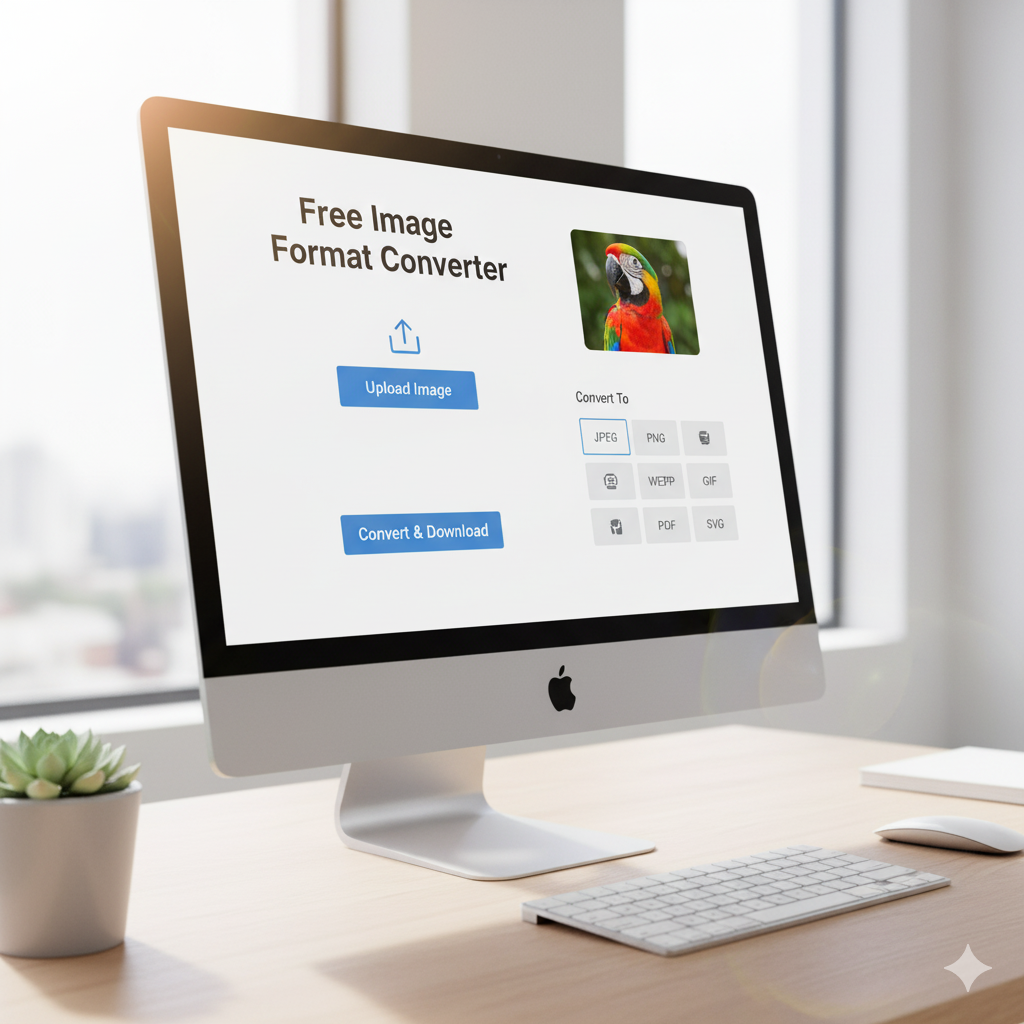
🔄 Image Format Converter
Convert images between JPG, PNG, WebP, and other formats with quality control
Drop your image here or click to browse
Supports JPG, PNG, GIF, WebP, BMP, and other common formats
- Small file size
- Lossy compression
- No transparency
- Universal support
- Lossless compression
- Transparency support
- Larger file size
- Great for graphics
- Superior compression
- Transparency support
- Modern browsers
- Best quality/size ratio
⚙️ Quality Settings
Original Image
Converted Image
Hey there!
Ever been stuck because you needed a PNG but only had a JPEG? Dealing with the wrong image types can be a pain. An image converter is a simple fix. It swaps your photos between file types while keeping them looking good. Our online converter is free and works with most file types. You don’t need to be a tech expert or buy fancy programs.
What’s an Image Converter?
It’s a tool that changes your picture’s file type. It can turn a JPEG into a PNG, a WebP into a GIF, or mix and match. It tweaks the image data to fit the rules of the format. The picture stays the same visually. Think of it as a translator for your photos and graphics.
Why Convert Images?
Different situations ask for certain image formats. Website folks change images to WebP so their sites load faster. Graphic designers want PNGs with see-through backgrounds for logos. Printers often need TIFFs for the best print quality. Social media likes JPEGs because they look good but aren’t too big.
Understanding Image Formats
Each format has stuff it’s good at. Knowing this helps you pick the right one.
JPEG/JPG
This is the go-to for photos and detailed images. It shrinks file sizes, which is great for websites and storing photos. It shows millions of colors but can’t do see-through backgrounds.
PNG
PNGs keep all the image data. They also do see-through backgrounds, so they’re good for logos. They’re best for graphics with text, lines, and basic drawings. Files are bigger than JPEGs, but they look great.
WebP
Google’s format offers good shrinking. WebP images are smaller than JPEGs and PNGs. Most browsers and sites support it now.
GIF and BMP
GIFs can do simple animations and see-through backgrounds. But they only show 256 colors, so they’re not for photos. BMPs are Windows images that don’t lose quality. They’re big and used in specific jobs.
How to Convert Images in 3 Steps
Our converter makes it easy. You can convert in under a minute.
Step 1: Upload
Click the upload spot and pick your image. You can drag and drop for ease. Upload from your computer, phone, or cloud.
Step 2: Pick a Format
Choose what you want to change it to. The converter tells you what each format is good for. You can tweak quality for JPEGs and WebPs.
Step 3: Download
Click convert and wait a bit. Then, download your image. The original stays safe.
Common Uses
Knowing how it’s used can help you. Web creators turn PNGs and JPEGs to WebPs for faster sites. Office workers change camera files to JPEGs for talks. Social media folks change PNGs to JPEGs for compatibility. Students convert images to meet school rules.